Bing Maps Street View
Bing Maps Street View, officially known as Streetside, is Microsoft's immersive street-level imagery feature that lets you explore locations through 360-degree panoramic photography. This powerful visual tool transforms the way you prepare for trips, preview destinations, and navigate unfamiliar areas by providing a ground-level perspective that traditional overhead maps cannot offer.
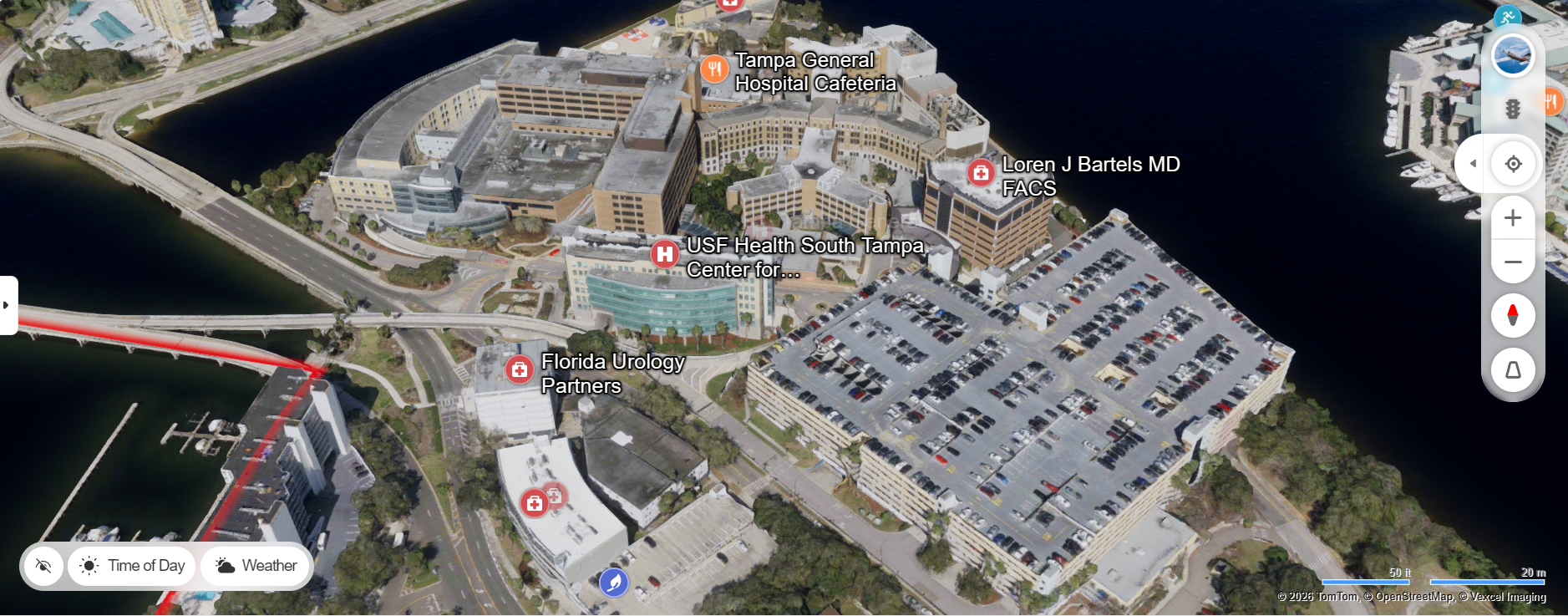
Streetside imagery is captured by specially equipped vehicles fitted with high-resolution cameras that photograph streets and public spaces from multiple angles simultaneously. These images are then stitched together to create seamless panoramic views that you can rotate, zoom, and navigate through directly within the Bing Maps interface.
How to Access Bing Maps Street View
Accessing Streetside on Bing Maps is simple. Navigate to any location on the map and look for the Streetside option in the map view controls. You can also drag and drop the Streetside icon (a small person figure) onto any street highlighted in blue to instantly enter the street-level view. Once in Streetside mode, you can look in any direction by clicking and dragging, zoom in for closer inspection, and move along the street by clicking the directional arrows.
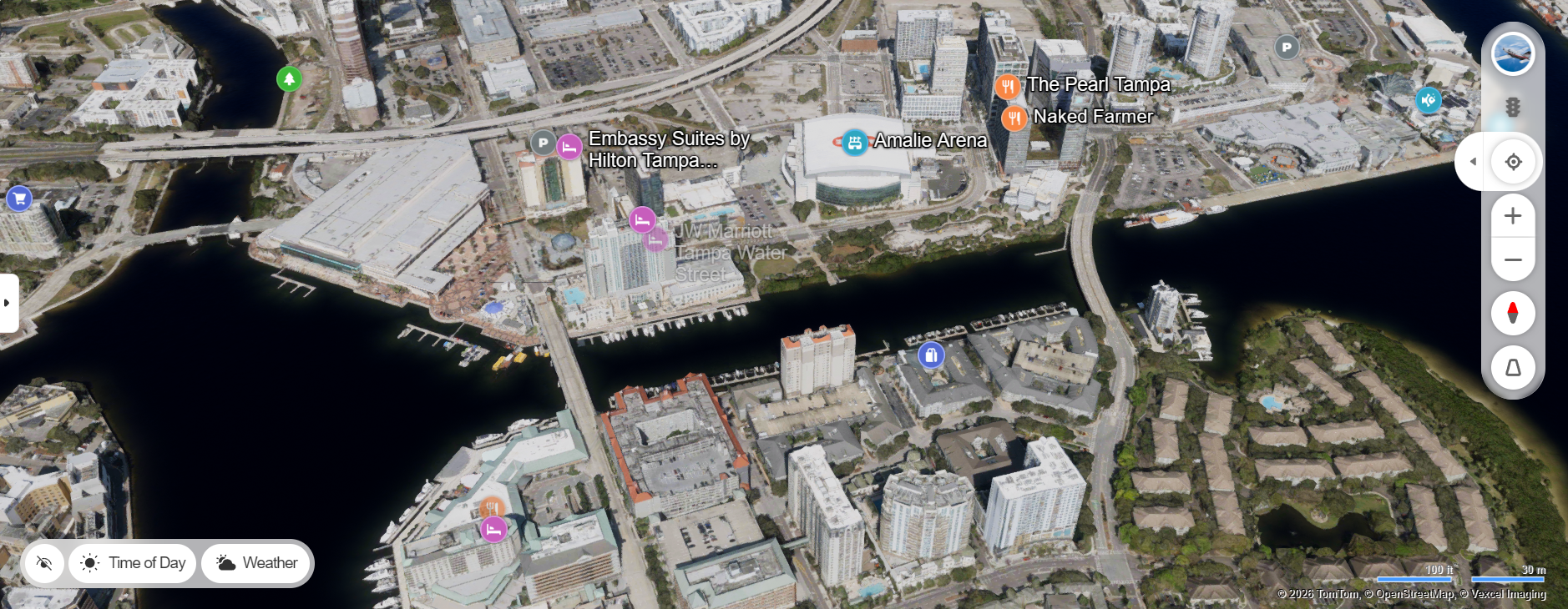
Streetside coverage is extensive in major metropolitan areas across North America and parts of Europe. Microsoft continuously expands its coverage by deploying capture vehicles to new cities and re-photographing existing areas to keep imagery current and accurate.
Uses for Bing Maps Street View
Previewing Your Destination
One of the most practical uses of Streetside is previewing your destination before you arrive. If you are visiting a new restaurant, hotel, or business for the first time, you can use Streetside to see exactly what the building looks like from the street. This helps you identify the entrance, locate signage, and get oriented before you even leave your home.
Navigating Complex Intersections
Some intersections — especially in urban centers — have multiple lanes, complicated traffic signals, and confusing layouts. Streetside allows you to virtually stand at the intersection and study it from every angle. This preparation can reduce anxiety and improve safety when you navigate the intersection in real life, particularly in cities you have never visited.
Real Estate and Property Research
Home buyers, renters, and real estate professionals use Streetside to assess neighborhoods remotely. You can view the exterior of properties, examine the condition of surrounding streets, check for nearby amenities, and evaluate the general character of a neighborhood — all from the comfort of your computer or phone.
Virtual Tourism
Streetside enables virtual tourism, allowing you to explore famous streets, landmarks, and neighborhoods around the world without traveling. Walk through the streets of downtown Seattle, explore the avenues of New York, or stroll through historic European cities — all through the Bing Maps interface.
Streetside vs. Traditional Map Views
Traditional overhead map views are excellent for understanding overall geography, distances, and route layouts. However, they cannot show you what a location actually looks like at ground level. Streetside fills this gap by providing the visual context that overhead maps lack. Together, the two views create a comprehensive understanding of any location.
When combined with Bing Maps driving directions, Streetside becomes even more powerful. You can plan a route from your starting point to your destination, then use Streetside to preview key turns, highway exits, and your final destination. This combination of route planning and visual confirmation makes your navigation experience significantly more confident and stress-free.
Privacy and Street View Imagery
Microsoft takes privacy seriously in its Streetside imagery. Faces and license plates captured in street-level photographs are automatically blurred using advanced image processing technology. If you identify imagery of your property or yourself that you would like removed, Microsoft provides a process for reporting and requesting the removal of specific images.
Tips for Using Bing Maps Street View
Check Coverage First — Not every street has Streetside imagery. Blue highlighted roads on the map indicate available coverage. If your destination street is not highlighted, try zooming out to find the nearest available Streetside imagery and navigate from there.
Use Full Screen Mode — For the best Streetside experience, switch to full screen mode. This maximizes the panoramic view and makes it easier to identify details like street signs, building numbers, and landmarks.
Combine with Bird's Eye View — Use Bird's Eye View for an aerial perspective and Streetside for ground-level detail. Switching between the two views gives you a complete understanding of the location's layout, access points, and surroundings.